
The National Computing Centre (NCC) is the single largest corporate membership body in the UK IT sector and promotes the effective deployment of IT to maximise the competitiveness of its members' business, serving the corporate, vendor and government communities. You may already be familiar with its IT & business information website, the Evaluation Centre (http://www.evaluationcentre.com/ ) and its magazine, Conspectus (http://www.conspectus.com/ ). They publish advice and information on a range of subjects.
I have now been asked by the NCC to write a series of articles for their expert views section of the evaluation centre website, in the role of their resident Accounting & Financial reporting Software expert (don’t worry it’s not a new job I am still at Touchstone resolving GP issues).
The first Article is now up on the site and deals with the forthcoming iXBRL requirement for HMRC within the UK. You do need to sign up to read it but it is free.
The below link will take you straight to the Expert view articles:
http://www.evaluationcentre.com/accounting_software_financial_reporting_software/strategy/expert_view.go
I would also like to take this opportunity to wish you all a Merry Christmas and a happy new year
Wednesday, 22 December 2010


Thursday, 16 December 2010
Dynamics GP 12 tips of Christmas
On the first day of Christmas my true love gave to me a brand new Financial Year
Tools> setup > company > Financial periods
In the year box enter your new year, check the first and last days, add the number of periods you require then select calculate, then ok , and voila you have a new year.
On the Second day of Christmas my true love gave to me A smartlist to check my account posting types.
Open smartlists goto financial and accounts. You will notice posting type is brought in by default. You can now set up search criteria based on your account structure to return accounts within the balance sheet range that do not have a posting type of balance sheet. In this way you can check the account posting types before yearend , the number one cause of year end issues being an incorrect posting type.
http://intouchdynamicsgp.blogspot.com/2009/09/no-1-cause-of-year-end-issues.html
On the third day of Christmas my true love gave to me a link to the online manuals ( so I could do her job while she was off living it up over the festive period)
Help> printable manuals
Here you will find manuals for most modules with instructions on how to complete most processes on the system.
On the fourth day of Christmas my true love gave to me advice on how to change to 20% tax in January.
See the below blog article for instructions
http://intouchdynamicsgp.blogspot.com/2010/09/all-change-on-20-tax-again-january-2011.html
On the fifth day of Christmas my true love gave to me a full backup before my Year end
Once you hit that process button for year end there is no undo, so you need to make sure you have a full backup before hand (just in case)
http://intouchdynamicsgp.blogspot.com/2009/09/what-should-i-back-up.html
On the sixth day of Christmas my true love gave to me a hard copy of my year end report.
There are no reprint options for the year end reports so , always print a hard copy or print to file, either way make sure you retain a copy.
http://intouchdynamicsgp.blogspot.com/2010/03/year-end-comes-before-2010-year-end.html
On the seventh day of Christmas my true love gave to me a customer list extracted from smartlist to send seasonal greetings (via a word mail merge).
Smartlists
Goto sales and customer addresses
Here you can output a list of your customer addresses to excel, once in excel this could be used to provide envelope addresses or contact details in a word mail merge document to send seasons greetings to all your customers.
On the eight day of Christmas my true love gave to me strict instructions not use GP (During or immediately after the office party whilst possibly under the influence)
Nuff said, don’t drink and post journals.
On the ninth day of Christmas my true love gave to me the support debugging tool (to change company background colours to something festive)
This is a great tool and on a serious note with the new floating GP windows its often difficult to tell which company your in if you have multiple companies open at a time on one machine. So why not colour code them , could save a lot of trouble with miss posted journals etc.
http://blogs.msdn.com/b/developingfordynamicsgp/archive/2009/08/07/support-debugging-tool.aspx
On the tenth day of Christmas my true love sent to me a budget for a Dynamics GP2010 upgrade (because its worth it).
Everyone should be asking Santa for this.
On the eleventh day of Christmas my true love gave to me a free download of Power pivot
For those that don’t know this is an incredibly powerful free add in to excel 2010, when combined with the other excel functionality in Dynamics GP this becomes a must have.
http://powerpivot.com/download.aspx
http://powerpivot.com/index.aspx
On the twelfth day of Christmas my true love gave to me a link to the Microsoft partner network festive game (to keep the IT dept interested, so they don’t decide to upgrade the network over the festive period without checking for compatibility with Dynamics GP first).
You laugh , it has happened to us two years on the trot on the helpdesk, sheepish calls from clients who suddenly find issues with frx and other functionality because IT decided to use the quite time to upgrade operating systems or servers and did not check for compatibility first. Please, please, please, please, check with your helpdesk before updating operating systems.
http://festivegame.cloudapp.net/?CR_CC=200018091
Merry Christmas
Tools> setup > company > Financial periods
In the year box enter your new year, check the first and last days, add the number of periods you require then select calculate, then ok , and voila you have a new year.
On the Second day of Christmas my true love gave to me A smartlist to check my account posting types.
Open smartlists goto financial and accounts. You will notice posting type is brought in by default. You can now set up search criteria based on your account structure to return accounts within the balance sheet range that do not have a posting type of balance sheet. In this way you can check the account posting types before yearend , the number one cause of year end issues being an incorrect posting type.
http://intouchdynamicsgp.blogspot.com/2009/09/no-1-cause-of-year-end-issues.html
On the third day of Christmas my true love gave to me a link to the online manuals ( so I could do her job while she was off living it up over the festive period)
Help> printable manuals
Here you will find manuals for most modules with instructions on how to complete most processes on the system.
On the fourth day of Christmas my true love gave to me advice on how to change to 20% tax in January.
See the below blog article for instructions
http://intouchdynamicsgp.blogspot.com/2010/09/all-change-on-20-tax-again-january-2011.html
On the fifth day of Christmas my true love gave to me a full backup before my Year end
Once you hit that process button for year end there is no undo, so you need to make sure you have a full backup before hand (just in case)
http://intouchdynamicsgp.blogspot.com/2009/09/what-should-i-back-up.html
On the sixth day of Christmas my true love gave to me a hard copy of my year end report.
There are no reprint options for the year end reports so , always print a hard copy or print to file, either way make sure you retain a copy.
http://intouchdynamicsgp.blogspot.com/2010/03/year-end-comes-before-2010-year-end.html
On the seventh day of Christmas my true love gave to me a customer list extracted from smartlist to send seasonal greetings (via a word mail merge).
Smartlists
Goto sales and customer addresses
Here you can output a list of your customer addresses to excel, once in excel this could be used to provide envelope addresses or contact details in a word mail merge document to send seasons greetings to all your customers.
On the eight day of Christmas my true love gave to me strict instructions not use GP (During or immediately after the office party whilst possibly under the influence)
Nuff said, don’t drink and post journals.
On the ninth day of Christmas my true love gave to me the support debugging tool (to change company background colours to something festive)
This is a great tool and on a serious note with the new floating GP windows its often difficult to tell which company your in if you have multiple companies open at a time on one machine. So why not colour code them , could save a lot of trouble with miss posted journals etc.
http://blogs.msdn.com/b/developingfordynamicsgp/archive/2009/08/07/support-debugging-tool.aspx
On the tenth day of Christmas my true love sent to me a budget for a Dynamics GP2010 upgrade (because its worth it).
Everyone should be asking Santa for this.
On the eleventh day of Christmas my true love gave to me a free download of Power pivot
For those that don’t know this is an incredibly powerful free add in to excel 2010, when combined with the other excel functionality in Dynamics GP this becomes a must have.
http://powerpivot.com/download.aspx
http://powerpivot.com/index.aspx
On the twelfth day of Christmas my true love gave to me a link to the Microsoft partner network festive game (to keep the IT dept interested, so they don’t decide to upgrade the network over the festive period without checking for compatibility with Dynamics GP first).
You laugh , it has happened to us two years on the trot on the helpdesk, sheepish calls from clients who suddenly find issues with frx and other functionality because IT decided to use the quite time to upgrade operating systems or servers and did not check for compatibility first. Please, please, please, please, check with your helpdesk before updating operating systems.
http://festivegame.cloudapp.net/?CR_CC=200018091
Merry Christmas
Wednesday, 1 December 2010
Forecaster 7 and the amazing expanding Z_RAW table
It’s been a while since I blogged simply because we are so busy at the moment. GP2010 is flying off the shelves in a very satisfactory way.
An odd issue with Forecaster 7 came to light the other day so I thought it best to set aside some time to create an article.
It all centres on the Z_RAW sql table which holds the data against cost code and account by period. The issue is caused by the way the data is stored. Every time you create a new period in forecaster it creates a new column against that cost code/account combination in the Z_RAW table.
Now because data is held against period, if you want to run previous input sets and reports as well as current ones you are going to need to keep creating new periods rather than re using the same ones.
So if you have 12 periods (Not unusual) and you want to do Quarterly Forecasts you will need to create 4 sets of the 4 periods which works out at 48 separate periods , so that is 48 extra columns added to the Z_RAW table.
There is a 1024 column limit on a non wide SQL table and a 1000 column limit when using replication. So using the above example it is going to take you 20 years till you reach the limit of the SQL table (That’s not so bad, I hear you cry). Well we have several clients who like to report on a weekly period structure, so the standard structure is 52 periods and if using the quarterly format that’s 208 extra periods a year. This means you reach the table limits in 4 and half years. If you throw in a 12 period frame work as well you reach that limit in just under 4 years.
The long and the short of it is, it’s not an issue if you know about it in advance as you can plan ahead and remove old data but if you don’t know about it, it could catch you out.
Forewarned is forearmed with forecaster.
An odd issue with Forecaster 7 came to light the other day so I thought it best to set aside some time to create an article.
It all centres on the Z_RAW sql table which holds the data against cost code and account by period. The issue is caused by the way the data is stored. Every time you create a new period in forecaster it creates a new column against that cost code/account combination in the Z_RAW table.
Now because data is held against period, if you want to run previous input sets and reports as well as current ones you are going to need to keep creating new periods rather than re using the same ones.
So if you have 12 periods (Not unusual) and you want to do Quarterly Forecasts you will need to create 4 sets of the 4 periods which works out at 48 separate periods , so that is 48 extra columns added to the Z_RAW table.
There is a 1024 column limit on a non wide SQL table and a 1000 column limit when using replication. So using the above example it is going to take you 20 years till you reach the limit of the SQL table (That’s not so bad, I hear you cry). Well we have several clients who like to report on a weekly period structure, so the standard structure is 52 periods and if using the quarterly format that’s 208 extra periods a year. This means you reach the table limits in 4 and half years. If you throw in a 12 period frame work as well you reach that limit in just under 4 years.
The long and the short of it is, it’s not an issue if you know about it in advance as you can plan ahead and remove old data but if you don’t know about it, it could catch you out.
Forewarned is forearmed with forecaster.
Thursday, 21 October 2010
Dynamics GP Fully applied payments stuck in Open
I was on the Microsoft forums recently helping to resolve the above issue for a partner in the UK. Ordinarily fully applied payables documents automatically move to history, however every now and then they don’t and they need a little nudge.
During the course of this forum post the standard process for forcing this move did not work and Jon (another Touchstone consultant) was able to offer other alternatives and I was also able to dig out an old script from our sql archives from version 6 days (may need the odd tweak for 2010).
As such a wealth of advice came out I thought it was worth documenting hear.
Standard Process;
The standard process is to rebuild the PM master keys (Delete PM00400) and the run checklinks on the payables transaction and transaction history logical groups to rebuild the PM00400 table. It is worth noting that you can lose some drill down ability doing this. Make sure you do a back up first.
This should do the job 9 times out of 10.
Remittance process:
Jon (Our Tame Dex Developer) has discovered that in some cases the transactions do not move if you have records in the PM20100 and they have a KEYSOURC of REMITTANCE. The assumption is that checklinks wont move them until the remittance is printed.
Jon has found that if you delete the records from the PM20100 and then run the standard process the records move.
The Move routine:
Jon has also found that you can run the move routine indervidually with the following SQL code.
declare @FuncCurr varchar(15)
declare @ErrorState int
select @FuncCurr = FUNLCURR from MC40000
create table #CNTRLNUMTEMP
(
CNTRLNUM VARCHAR(21) NOT NULL,
DOCTYPE SMALLINT NOT NULL,
VENDORID VARCHAR(15) NOT NULL
)
exec pmclmovefullyapplied
'sa', @FuncCurr, 'PM_Transaction_OPEN', '%1', @ErrorState output
select * from SY03400
delete SY03400
SQL Script to move open to history:
If all of this fails i have in my archive a SQL script to move open to History. This was written for version 6 originally so may need some tweaking for 2010.
/*
** Procedure Name: PM move open to history for R6
**
** Description:
**
** Script is for R6 PM transactions that show fully applied and are still in the open table.
**
** Important:
** There are numerous places where the Voucher Number, Document Type, Control Number, or Vendor ID
** must be provided. To find these locations do a search on 00000000000000001. Replace 00000000000000001
** with the voucher number you want to move to history.
** Also do a search on '??????????' and replace this with the Vendor Id of the voucher.
** If the invoice needs to be moved then change DOCTYPE to 1 and CTRLTYP to 0.
** If the payment needs to be moved then change DOCTYPE to 6 and CTRLTYP to 1.
** For the Distribution section, the History has a DOCTYPE but the Work does not. The script is
** hardcoded for invoices. If the document is a payment, in the line following the 'select' in
** PM30600's insert statement, replace the 1 with 6.
**
** This script does not update reprint information (the PM80000's tables).
**
**
** Database:
**
** Any
**
**
** Tables:
**
** SQL Table Access Method
** --------------------- -------------
** PM30200 Read/Write
** PM20000 Read/Write
** PM00400 Read
** PM30300 Read/Write
** PM10200 Read/Write
** PM30600 Read/Write
** PM10100 Read/Write
** PM10500 Read/Write
** PM30700 Read/Write
**
**
******************************************************************************************
*/
begin
insert into PM30200 (VCHRNMBR,VENDORID,DOCTYPE,DOCDATE,DOCNUMBR,DOCAMNT,
CURTRXAM,DISTKNAM,DISCAMNT,DSCDLRAM,BACHNUMB,TRXSORCE,
BCHSOURC,DISCDATE,DUEDATE,PORDNMBR,TEN99AMNT,WROFAMNT,
DISAMTAV,TRXDSCRN,UN1099AM,BKTPURAM,BKTFRTAM,BKTMSCAM,
VOIDED,HOLD,CHEKBKID,DINVPDOF,PPSAMDED,PPSTAXRT,
PGRAMSBJ,GSTDSAMT,POSTEDDT,PTDUSRID,MODIFDT,MDFUSRID,
PYENTTYP,CARDNAME,PRCHAMNT,TRDISAMT,MSCCHAMT,FRTAMNT,
TAXAMNT,TTLPYMTS,CURNCYID,PYMTRMID,SHIPMTHD,TAXSCHID,
PCHSCHID,FRTSCHID,MSCSCHID,PSTGDATE,DISAVTKN,CNTRLTYP,
NOTEINDX,PRCTDISC,RETNAGAM,ICTRX,Tax_Date,PRCHDATE,
CORRCTN,SIMPLIFD,APLYWITH,Electronic,ECTRX,
DocPrinted,TaxInvReqd,VNDCHKNM)
select
VCHRNMBR,VENDORID,DOCTYPE,DOCDATE,DOCNUMBR,DOCAMNT,
CURTRXAM,DISTKNAM,DISCAMNT,DSCDLRAM,BACHNUMB,TRXSORCE,
BCHSOURC,DISCDATE,DUEDATE,PORDNMBR,TEN99AMNT,WROFAMNT,
DISAMTAV,TRXDSCRN,UN1099AM,BKTPURAM,BKTFRTAM,BKTMSCAM,
VOIDED,HOLD,CHEKBKID,DINVPDOF,PPSAMDED,PPSTAXRT,
PGRAMSBJ,GSTDSAMT,POSTEDDT,PTDUSRID,MODIFDT,MDFUSRID,
PYENTTYP,CARDNAME,PRCHAMNT,TRDISAMT,MSCCHAMT,FRTAMNT,
TAXAMNT,TTLPYMTS,CURNCYID,PYMTRMID,SHIPMTHD,TAXSCHID,
PCHSCHID,FRTSCHID,MSCSCHID,PSTGDATE,DISAVTKN,CNTRLTYP,
NOTEINDX,PRCTDISC,RETNAGAM,ICTRX,Tax_Date,PRCHDATE,
CORRCTN,SIMPLIFD,APLYWITH,Electronic,ECTRX,
DocPrinted,TaxInvReqd,VNDCHKNM
from PM20000
where DOCTYPE = 1
and VCHRNMBR = '00000000000000001'
and VENDORID = '??????????'
delete PM20000
where VCHRNMBR = '00000000000000001'
and DOCTYPE = 1
and VENDORID = '??????????'
print 'Your insert into PM30200 is complete. Now continue with update of the PM00400 table.'
/*This script will update the PM00400 table and flag the document from Open to History */
/*The CTRLNUM is the voucher number. The CNTRLTYP is 0 for invoice and 1 for payment */
update PM00400 set DCSTATUS = 3
where CNTRLNUM = '00000000000000001' and VENDORID= '??????????' and DCSTATUS = 2 and CNTRLTYP = 0
print 'Your update on PM00400 is complete. Now continue with insert on the PM30300 table'
end
/* This script will move the apply records from Apply to Work Open to Apply to History and then
** delete the PM10200 records. The apply to Voucher Number must be provided, which is the
** invoice voucher number.
*/
begin
insert PM30300
(VENDORID,DOCDATE,DATE1,GLPOSTDT,TIME1,VCHRNMBR,
DOCTYPE,APFRDCNM,ApplyFromGLPostDate,FROMCURR, APFRMAPLYAMT, APFRMDISCTAKEN,
APFRMDISCAVAIL,APFRMWROFAMT,ActualApplyToAmount,ActualDiscTakenAmount,ActualDiscAvailTaken, ActualWriteOffAmount,
APFRMEXRATE,APFRMDENRATE,APFRMRTCLCMETH,APFRMMCTRXSTT,APTVCHNM, APTODCTY,
APTODCNM,APTODCDT,ApplyToGLPostDate,CURNCYID,CURRNIDX,APPLDAMT,
DISTKNAM,DISAVTKN,WROFAMNT,ORAPPAMT,ORDISTKN, ORDATKN,
ORWROFAM,APTOEXRATE,APTODENRATE,APTORTCLCMETH,APTOMCTRXSTT,PPSAMDED,
GSTDSAMT,TAXDTLID,POSTED,TEN99AMNT,RLGANLOS,APYFRMRNDAMT,
APYTORNDAMT,APYTORNDDISC,OAPYFRMRNDAMT,OAPYTORNDAMT,OAPYTORNDDISC,Settled_Gain_CreditCurrT,
Settled_Loss_CreditCurrT,Settled_Gain_DebitCurrTr,Settled_Loss_DebitCurrTr,Settled_Gain_DebitDiscAv,
Settled_Loss_DebitDiscAv)
select
VENDORID,DOCDATE,DATE1,GLPOSTDT,TIME1,VCHRNMBR,
DOCTYPE,APFRDCNM,ApplyFromGLPostDate,FROMCURR, APFRMAPLYAMT, APFRMDISCTAKEN,
APFRMDISCAVAIL,APFRMWROFAMT,ActualApplyToAmount,ActualDiscTakenAmount,ActualDiscAvailTaken, ActualWriteOffAmount,
APFRMEXRATE,APFRMDENRATE,APFRMRTCLCMETH,APFRMMCTRXSTT,APTVCHNM, APTODCTY,
APTODCNM,APTODCDT,ApplyToGLPostDate,CURNCYID,CURRNIDX,APPLDAMT,
DISTKNAM,DISAVTKN,WROFAMNT,ORAPPAMT,ORDISTKN, ORDATKN,
ORWROFAM,APTOEXRATE,APTODENRATE,APTORTCLCMETH,APTOMCTRXSTT,PPSAMDED,
GSTDSAMT,TAXDTLID,POSTED,TEN99AMNT,RLGANLOS,APYFRMRNDAMT,
APYTORNDAMT,APYTORNDDISC,OAPYFRMRNDAMT,OAPYTORNDAMT,OAPYTORNDDISC,Settled_Gain_CreditCurrT,
Settled_Loss_CreditCurrT,Settled_Gain_DebitCurrTr,Settled_Loss_DebitCurrTr,Settled_Gain_DebitDiscAv,
Settled_Loss_DebitDiscAv
from PM10200
where APTVCHNM = '00000000000000001'
and APTODCTY = 1
and VENDORID = '??????????'
delete PM10200
where APTVCHNM = '00000000000000001'
and APTODCTY = 1
and VENDORID = '??????????'
print 'Your update on PM30300 is complete. Now continuing with insert on the PM30600 table'
end
/* This script will move the distribution records from the Distribution Work Open to Hist and
** then deletes the PM10100 records. The Voucher Number must be provided. The CNTRLTYP is 0
** for invoice and 1 for payment.
*/
begin
insert into PM30600
(DOCTYPE,VCHRNMBR,DSTSQNUM,CNTRLTYP,CRDTAMNT,DEBITAMT,
DSTINDX,DISTTYPE,CHANGED,USERID,PSTGSTUS,VENDORID,
TRXSORCE,PSTGDATE,CURNCYID,CURRNIDX,ORCRDAMT,ORDBTAMT,
APTVCHNM,APTODCTY,SPCLDIST,DistRef)
select
1,VCHRNMBR,DSTSQNUM,CNTRLTYP,CRDTAMNT,DEBITAMT,
DSTINDX,DISTTYPE,CHANGED,USERID,PSTGSTUS,VENDORID,
TRXSORCE,PSTGDATE,CURNCYID,CURRNIDX,ORCRDAMT,ORDBTAMT,
APTVCHNM,APTODCTY,SPCLDIST,DistRef
from
PM10100
where VCHRNMBR = '00000000000000001'
and VENDORID = '??????????'
and CNTRLTYP = 0
delete PM10100
where VCHRNMBR = '00000000000000001'
and VENDORID = '??????????'
and CNTRLTYP = 0
print 'Your update on PM30600 is complete. Now continuing with insert on the PM30700 table'
end
/* This script will move the Tax records from Tax Work to Tax History and then deletes the
** PM10500 records. The apply to Voucher Number must be provided.
*/
begin
insert PM30700
(VENDORID,VCHRNMBR,DOCTYPE,BACHNUMB,TAXDTLID,BKOUTTAX,
TAXAMNT,ORTAXAMT,PCTAXAMT,ORPURTAX,FRTTXAMT,ORFRTTAX,
MSCTXAMT,ORMSCTAX,ACTINDX,TRXSORCE,TDTTXPUR,ORTXBPUR,
TXDTTPUR,ORTOTPUR,CURRNIDX)
select
VENDORID,VCHRNMBR,DOCTYPE,BACHNUMB,TAXDTLID,BKOUTTAX,
TAXAMNT,ORTAXAMT,PCTAXAMT,ORPURTAX,FRTTXAMT,ORFRTTAX,
MSCTXAMT,ORMSCTAX,ACTINDX,TRXSORCE,TDTTXPUR,ORTXBPUR,
TXDTTPUR,ORTOTPUR,CURRNIDX
from PM10500
where VCHRNMBR = '00000000000000001'
and DOCTYPE = 1
and VENDORID = '??????????'
delete PM10500
where VCHRNMBR = '00000000000000001'
and DOCTYPE = 1
and VENDORID = '??????????'
print 'Your update on PM30700 is complete. Move process is complete.'
end
During the course of this forum post the standard process for forcing this move did not work and Jon (another Touchstone consultant) was able to offer other alternatives and I was also able to dig out an old script from our sql archives from version 6 days (may need the odd tweak for 2010).
As such a wealth of advice came out I thought it was worth documenting hear.
Standard Process;
The standard process is to rebuild the PM master keys (Delete PM00400) and the run checklinks on the payables transaction and transaction history logical groups to rebuild the PM00400 table. It is worth noting that you can lose some drill down ability doing this. Make sure you do a back up first.
This should do the job 9 times out of 10.
Remittance process:
Jon (Our Tame Dex Developer) has discovered that in some cases the transactions do not move if you have records in the PM20100 and they have a KEYSOURC of REMITTANCE. The assumption is that checklinks wont move them until the remittance is printed.
Jon has found that if you delete the records from the PM20100 and then run the standard process the records move.
The Move routine:
Jon has also found that you can run the move routine indervidually with the following SQL code.
declare @FuncCurr varchar(15)
declare @ErrorState int
select @FuncCurr = FUNLCURR from MC40000
create table #CNTRLNUMTEMP
(
CNTRLNUM VARCHAR(21) NOT NULL,
DOCTYPE SMALLINT NOT NULL,
VENDORID VARCHAR(15) NOT NULL
)
exec pmclmovefullyapplied
'sa', @FuncCurr, 'PM_Transaction_OPEN', '%1', @ErrorState output
select * from SY03400
delete SY03400
SQL Script to move open to history:
If all of this fails i have in my archive a SQL script to move open to History. This was written for version 6 originally so may need some tweaking for 2010.
/*
** Procedure Name: PM move open to history for R6
**
** Description:
**
** Script is for R6 PM transactions that show fully applied and are still in the open table.
**
** Important:
** There are numerous places where the Voucher Number, Document Type, Control Number, or Vendor ID
** must be provided. To find these locations do a search on 00000000000000001. Replace 00000000000000001
** with the voucher number you want to move to history.
** Also do a search on '??????????' and replace this with the Vendor Id of the voucher.
** If the invoice needs to be moved then change DOCTYPE to 1 and CTRLTYP to 0.
** If the payment needs to be moved then change DOCTYPE to 6 and CTRLTYP to 1.
** For the Distribution section, the History has a DOCTYPE but the Work does not. The script is
** hardcoded for invoices. If the document is a payment, in the line following the 'select' in
** PM30600's insert statement, replace the 1 with 6.
**
** This script does not update reprint information (the PM80000's tables).
**
**
** Database:
**
** Any
**
**
** Tables:
**
** SQL Table Access Method
** --------------------- -------------
** PM30200 Read/Write
** PM20000 Read/Write
** PM00400 Read
** PM30300 Read/Write
** PM10200 Read/Write
** PM30600 Read/Write
** PM10100 Read/Write
** PM10500 Read/Write
** PM30700 Read/Write
**
**
******************************************************************************************
*/
begin
insert into PM30200 (VCHRNMBR,VENDORID,DOCTYPE,DOCDATE,DOCNUMBR,DOCAMNT,
CURTRXAM,DISTKNAM,DISCAMNT,DSCDLRAM,BACHNUMB,TRXSORCE,
BCHSOURC,DISCDATE,DUEDATE,PORDNMBR,TEN99AMNT,WROFAMNT,
DISAMTAV,TRXDSCRN,UN1099AM,BKTPURAM,BKTFRTAM,BKTMSCAM,
VOIDED,HOLD,CHEKBKID,DINVPDOF,PPSAMDED,PPSTAXRT,
PGRAMSBJ,GSTDSAMT,POSTEDDT,PTDUSRID,MODIFDT,MDFUSRID,
PYENTTYP,CARDNAME,PRCHAMNT,TRDISAMT,MSCCHAMT,FRTAMNT,
TAXAMNT,TTLPYMTS,CURNCYID,PYMTRMID,SHIPMTHD,TAXSCHID,
PCHSCHID,FRTSCHID,MSCSCHID,PSTGDATE,DISAVTKN,CNTRLTYP,
NOTEINDX,PRCTDISC,RETNAGAM,ICTRX,Tax_Date,PRCHDATE,
CORRCTN,SIMPLIFD,APLYWITH,Electronic,ECTRX,
DocPrinted,TaxInvReqd,VNDCHKNM)
select
VCHRNMBR,VENDORID,DOCTYPE,DOCDATE,DOCNUMBR,DOCAMNT,
CURTRXAM,DISTKNAM,DISCAMNT,DSCDLRAM,BACHNUMB,TRXSORCE,
BCHSOURC,DISCDATE,DUEDATE,PORDNMBR,TEN99AMNT,WROFAMNT,
DISAMTAV,TRXDSCRN,UN1099AM,BKTPURAM,BKTFRTAM,BKTMSCAM,
VOIDED,HOLD,CHEKBKID,DINVPDOF,PPSAMDED,PPSTAXRT,
PGRAMSBJ,GSTDSAMT,POSTEDDT,PTDUSRID,MODIFDT,MDFUSRID,
PYENTTYP,CARDNAME,PRCHAMNT,TRDISAMT,MSCCHAMT,FRTAMNT,
TAXAMNT,TTLPYMTS,CURNCYID,PYMTRMID,SHIPMTHD,TAXSCHID,
PCHSCHID,FRTSCHID,MSCSCHID,PSTGDATE,DISAVTKN,CNTRLTYP,
NOTEINDX,PRCTDISC,RETNAGAM,ICTRX,Tax_Date,PRCHDATE,
CORRCTN,SIMPLIFD,APLYWITH,Electronic,ECTRX,
DocPrinted,TaxInvReqd,VNDCHKNM
from PM20000
where DOCTYPE = 1
and VCHRNMBR = '00000000000000001'
and VENDORID = '??????????'
delete PM20000
where VCHRNMBR = '00000000000000001'
and DOCTYPE = 1
and VENDORID = '??????????'
print 'Your insert into PM30200 is complete. Now continue with update of the PM00400 table.'
/*This script will update the PM00400 table and flag the document from Open to History */
/*The CTRLNUM is the voucher number. The CNTRLTYP is 0 for invoice and 1 for payment */
update PM00400 set DCSTATUS = 3
where CNTRLNUM = '00000000000000001' and VENDORID= '??????????' and DCSTATUS = 2 and CNTRLTYP = 0
print 'Your update on PM00400 is complete. Now continue with insert on the PM30300 table'
end
/* This script will move the apply records from Apply to Work Open to Apply to History and then
** delete the PM10200 records. The apply to Voucher Number must be provided, which is the
** invoice voucher number.
*/
begin
insert PM30300
(VENDORID,DOCDATE,DATE1,GLPOSTDT,TIME1,VCHRNMBR,
DOCTYPE,APFRDCNM,ApplyFromGLPostDate,FROMCURR, APFRMAPLYAMT, APFRMDISCTAKEN,
APFRMDISCAVAIL,APFRMWROFAMT,ActualApplyToAmount,ActualDiscTakenAmount,ActualDiscAvailTaken, ActualWriteOffAmount,
APFRMEXRATE,APFRMDENRATE,APFRMRTCLCMETH,APFRMMCTRXSTT,APTVCHNM, APTODCTY,
APTODCNM,APTODCDT,ApplyToGLPostDate,CURNCYID,CURRNIDX,APPLDAMT,
DISTKNAM,DISAVTKN,WROFAMNT,ORAPPAMT,ORDISTKN, ORDATKN,
ORWROFAM,APTOEXRATE,APTODENRATE,APTORTCLCMETH,APTOMCTRXSTT,PPSAMDED,
GSTDSAMT,TAXDTLID,POSTED,TEN99AMNT,RLGANLOS,APYFRMRNDAMT,
APYTORNDAMT,APYTORNDDISC,OAPYFRMRNDAMT,OAPYTORNDAMT,OAPYTORNDDISC,Settled_Gain_CreditCurrT,
Settled_Loss_CreditCurrT,Settled_Gain_DebitCurrTr,Settled_Loss_DebitCurrTr,Settled_Gain_DebitDiscAv,
Settled_Loss_DebitDiscAv)
select
VENDORID,DOCDATE,DATE1,GLPOSTDT,TIME1,VCHRNMBR,
DOCTYPE,APFRDCNM,ApplyFromGLPostDate,FROMCURR, APFRMAPLYAMT, APFRMDISCTAKEN,
APFRMDISCAVAIL,APFRMWROFAMT,ActualApplyToAmount,ActualDiscTakenAmount,ActualDiscAvailTaken, ActualWriteOffAmount,
APFRMEXRATE,APFRMDENRATE,APFRMRTCLCMETH,APFRMMCTRXSTT,APTVCHNM, APTODCTY,
APTODCNM,APTODCDT,ApplyToGLPostDate,CURNCYID,CURRNIDX,APPLDAMT,
DISTKNAM,DISAVTKN,WROFAMNT,ORAPPAMT,ORDISTKN, ORDATKN,
ORWROFAM,APTOEXRATE,APTODENRATE,APTORTCLCMETH,APTOMCTRXSTT,PPSAMDED,
GSTDSAMT,TAXDTLID,POSTED,TEN99AMNT,RLGANLOS,APYFRMRNDAMT,
APYTORNDAMT,APYTORNDDISC,OAPYFRMRNDAMT,OAPYTORNDAMT,OAPYTORNDDISC,Settled_Gain_CreditCurrT,
Settled_Loss_CreditCurrT,Settled_Gain_DebitCurrTr,Settled_Loss_DebitCurrTr,Settled_Gain_DebitDiscAv,
Settled_Loss_DebitDiscAv
from PM10200
where APTVCHNM = '00000000000000001'
and APTODCTY = 1
and VENDORID = '??????????'
delete PM10200
where APTVCHNM = '00000000000000001'
and APTODCTY = 1
and VENDORID = '??????????'
print 'Your update on PM30300 is complete. Now continuing with insert on the PM30600 table'
end
/* This script will move the distribution records from the Distribution Work Open to Hist and
** then deletes the PM10100 records. The Voucher Number must be provided. The CNTRLTYP is 0
** for invoice and 1 for payment.
*/
begin
insert into PM30600
(DOCTYPE,VCHRNMBR,DSTSQNUM,CNTRLTYP,CRDTAMNT,DEBITAMT,
DSTINDX,DISTTYPE,CHANGED,USERID,PSTGSTUS,VENDORID,
TRXSORCE,PSTGDATE,CURNCYID,CURRNIDX,ORCRDAMT,ORDBTAMT,
APTVCHNM,APTODCTY,SPCLDIST,DistRef)
select
1,VCHRNMBR,DSTSQNUM,CNTRLTYP,CRDTAMNT,DEBITAMT,
DSTINDX,DISTTYPE,CHANGED,USERID,PSTGSTUS,VENDORID,
TRXSORCE,PSTGDATE,CURNCYID,CURRNIDX,ORCRDAMT,ORDBTAMT,
APTVCHNM,APTODCTY,SPCLDIST,DistRef
from
PM10100
where VCHRNMBR = '00000000000000001'
and VENDORID = '??????????'
and CNTRLTYP = 0
delete PM10100
where VCHRNMBR = '00000000000000001'
and VENDORID = '??????????'
and CNTRLTYP = 0
print 'Your update on PM30600 is complete. Now continuing with insert on the PM30700 table'
end
/* This script will move the Tax records from Tax Work to Tax History and then deletes the
** PM10500 records. The apply to Voucher Number must be provided.
*/
begin
insert PM30700
(VENDORID,VCHRNMBR,DOCTYPE,BACHNUMB,TAXDTLID,BKOUTTAX,
TAXAMNT,ORTAXAMT,PCTAXAMT,ORPURTAX,FRTTXAMT,ORFRTTAX,
MSCTXAMT,ORMSCTAX,ACTINDX,TRXSORCE,TDTTXPUR,ORTXBPUR,
TXDTTPUR,ORTOTPUR,CURRNIDX)
select
VENDORID,VCHRNMBR,DOCTYPE,BACHNUMB,TAXDTLID,BKOUTTAX,
TAXAMNT,ORTAXAMT,PCTAXAMT,ORPURTAX,FRTTXAMT,ORFRTTAX,
MSCTXAMT,ORMSCTAX,ACTINDX,TRXSORCE,TDTTXPUR,ORTXBPUR,
TXDTTPUR,ORTOTPUR,CURRNIDX
from PM10500
where VCHRNMBR = '00000000000000001'
and DOCTYPE = 1
and VENDORID = '??????????'
delete PM10500
where VCHRNMBR = '00000000000000001'
and DOCTYPE = 1
and VENDORID = '??????????'
print 'Your update on PM30700 is complete. Move process is complete.'
end
Monday, 18 October 2010
Dynamics GP and switching it off and on again (that fixes everything..doesn’t it?)
I got a joke email this morning entitled “Interesting Statistics”. One of the statistics was the likelihood of a computer issue being solved by switching it off and on again. I smiled at this thinking “how true” and then I realised that this can be a potentially problematic attitude to have with Dynamics GP, after all we are dealing with transactional data which does change status and transfer between tables on a regular basis. An interruption to this process can cause issues.
So here is my guide to switching it off and on again.

First things first, is it still doing something?
• Check the process monitor, Microsoft Dynamics GP button and process monitor. Here you can see if there are any processes queued up on your machine. You can take an informed decision as to whether that process is transactional in nature. Some processes can be suspended or even removed. Note the system will not allow you to remove certain processes.

• Check the Task manager on your work station. See if there are other processes running that can free up memory, make sure you are not maxed out on CPU usage. Check the amount of available ram as opposed to page file usage. Page files are actually on your hard disk as opposed to ram (on a chip) and so are naturally slower.

If you really have no choice, crash out.
This is not as drastic as it seems. Since Dynamics GP version 6 we have had batch recovery, this will catch a lot of interruptions etc, and allow you to continue posting. You should get a nice friendly message when you re enter Dynamics GP that there is a batch awaiting you in batch recovery.
Also remember if you crash out your user will be locked in. In versions 9 and above of Dynamics GP you will be able to delete your own activity at login and log back in , if you are on an earlier version you will need to get your system administrator to remove your activity.
Some times it may become necessary to stop and start SQL, this is the relational database behind Dynamics GP. This is usually done to clear down sql temporary tables etc and should never be done with users still in the system (and a viable backup).
However this is the important thing, don’t crash out or reboot or stop and start without seeking advice from your helpdesk/reseller first. It may seem silly, it may be something that you don’t feel you should bother us with, but at the end of the day we would rather be safe than sorry.
So here is my guide to switching it off and on again.

First things first, is it still doing something?
• Check the process monitor, Microsoft Dynamics GP button and process monitor. Here you can see if there are any processes queued up on your machine. You can take an informed decision as to whether that process is transactional in nature. Some processes can be suspended or even removed. Note the system will not allow you to remove certain processes.

• Check the Task manager on your work station. See if there are other processes running that can free up memory, make sure you are not maxed out on CPU usage. Check the amount of available ram as opposed to page file usage. Page files are actually on your hard disk as opposed to ram (on a chip) and so are naturally slower.

If you really have no choice, crash out.
This is not as drastic as it seems. Since Dynamics GP version 6 we have had batch recovery, this will catch a lot of interruptions etc, and allow you to continue posting. You should get a nice friendly message when you re enter Dynamics GP that there is a batch awaiting you in batch recovery.
Also remember if you crash out your user will be locked in. In versions 9 and above of Dynamics GP you will be able to delete your own activity at login and log back in , if you are on an earlier version you will need to get your system administrator to remove your activity.
Some times it may become necessary to stop and start SQL, this is the relational database behind Dynamics GP. This is usually done to clear down sql temporary tables etc and should never be done with users still in the system (and a viable backup).
However this is the important thing, don’t crash out or reboot or stop and start without seeking advice from your helpdesk/reseller first. It may seem silly, it may be something that you don’t feel you should bother us with, but at the end of the day we would rather be safe than sorry.
Thursday, 14 October 2010
Dynamics GP 2010 word templates and required fields to allow emailing or why won’t my modified word template email.
Hi folks this is one we have discovered the hard way. This issue only occurs when you use a modified report as the basis for a word template. In our case it was the remittance advice.
We modified the word template as per the instructions at the end of the Dynamics (GP) 2010 report writer manual. The template was pickup up fine and brought to screen and displayed properly when running the report. The word document could be printed etc. but it would not email.
We talked to Microsoft about this and they advised us that they had had several cases recently where certain fields missing from certain parts of the template had prevented the application identifying the vendor.
Using this as a starting point vendor ID was the obvious place to start looking , however we did have VendorID on the report.
What we discovered was this.
The report writer report needs the VENDORID field from pmRemittancetmp table to be placed anywhere in the report.
Our report used the VENDORID from PM Payment Work in the RH section, we replaced it and all then emailed correctly.
So you need to be careful when modifying reports that you intend to use in a word template, one vendorid is not as good as another. We can also surmise that this is true for many of the other reports.
As and when we find out what the other key fields are on the other reports we will update this blog, in the mean time if you discover any feel free to update the comments.
We modified the word template as per the instructions at the end of the Dynamics (GP) 2010 report writer manual. The template was pickup up fine and brought to screen and displayed properly when running the report. The word document could be printed etc. but it would not email.
We talked to Microsoft about this and they advised us that they had had several cases recently where certain fields missing from certain parts of the template had prevented the application identifying the vendor.
Using this as a starting point vendor ID was the obvious place to start looking , however we did have VendorID on the report.
What we discovered was this.
The report writer report needs the VENDORID field from pmRemittancetmp table to be placed anywhere in the report.
Our report used the VENDORID from PM Payment Work in the RH section, we replaced it and all then emailed correctly.
So you need to be careful when modifying reports that you intend to use in a word template, one vendorid is not as good as another. We can also surmise that this is true for many of the other reports.
As and when we find out what the other key fields are on the other reports we will update this blog, in the mean time if you discover any feel free to update the comments.
Tuesday, 12 October 2010
How to avoid blank address lines in Dynamics GP report writer.
This is one that is cropping up more and more with the advent of electronic mail reading systems. We have had several calls on the helpdesk from clients who have had mailings returned because of blank lines in the address which is stopping the electronic systems used by the post office reading the address correctly.
The issue is caused by the fact that not all customer or creditor addresses are long enough to use all the address fields. This means that there can be blank lines between the last address line used and the post code (Zip code for our cousins across the pond).
You can get round this using calculated fields.
Step1: create a new calculated field in report writer (I am using the RM statement on blank paper).

Step2 : Set the result type to string.

Step3: Select the function tab and then ‘user-defined’ and the function of ‘rw_selectAddrLine’ and insert.
Step 4: Now select the ‘constant’ tab and integer as type and the constant of 1… (this means the first address line. when you do a cal field for address line 2, 3, 4 etc.. the integer value will change accordingly to 1, 2, 3, etc.). Then select add.

Step 5: Next you must select all the address lines and add them.
From this example (RM statement) the resource is ‘rm statement header temp’
Then select address 1, 2, 3 city, state, zip and insert them all one by one

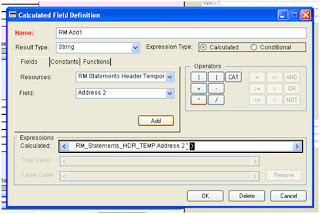
Step 6: Then once all the address lines have been added go to the Constant tab and select the type as ‘string’ and leave the constant blank and click insert
You will notice it inserts ‘’ you must insert 3 of these symbols..
The reason being you need to have 10 conditions..
So we selected the integer as ‘1’ in the beginning and then 6 address lines so we need 3 blank strings to get our total of 10.

Step 7: Now repeat steps 1 to 6 for each of the address lines (the above is the calc field for address line 1) you must create 5 further fields for address line 2,3 4 etc.. and remember the constant integer changes according to the number of the address line you are doing.. 1,2,3 etc..
Step 8: deploy the calculated field address lines in the report one underneath the other. The rw_selectAddrLine’ function will then take care of any blank lines when you run the report selecting the line if populated but if not picking the next populated line.
The issue is caused by the fact that not all customer or creditor addresses are long enough to use all the address fields. This means that there can be blank lines between the last address line used and the post code (Zip code for our cousins across the pond).
You can get round this using calculated fields.
Step1: create a new calculated field in report writer (I am using the RM statement on blank paper).

Step2 : Set the result type to string.

Step3: Select the function tab and then ‘user-defined’ and the function of ‘rw_selectAddrLine’ and insert.
Step 4: Now select the ‘constant’ tab and integer as type and the constant of 1… (this means the first address line. when you do a cal field for address line 2, 3, 4 etc.. the integer value will change accordingly to 1, 2, 3, etc.). Then select add.

Step 5: Next you must select all the address lines and add them.
From this example (RM statement) the resource is ‘rm statement header temp’
Then select address 1, 2, 3 city, state, zip and insert them all one by one


Step 6: Then once all the address lines have been added go to the Constant tab and select the type as ‘string’ and leave the constant blank and click insert
You will notice it inserts ‘’ you must insert 3 of these symbols..
The reason being you need to have 10 conditions..
So we selected the integer as ‘1’ in the beginning and then 6 address lines so we need 3 blank strings to get our total of 10.

Step 7: Now repeat steps 1 to 6 for each of the address lines (the above is the calc field for address line 1) you must create 5 further fields for address line 2,3 4 etc.. and remember the constant integer changes according to the number of the address line you are doing.. 1,2,3 etc..
Step 8: deploy the calculated field address lines in the report one underneath the other. The rw_selectAddrLine’ function will then take care of any blank lines when you run the report selecting the line if populated but if not picking the next populated line.
Subscribe to:
Posts (Atom)


 Posts
Posts


